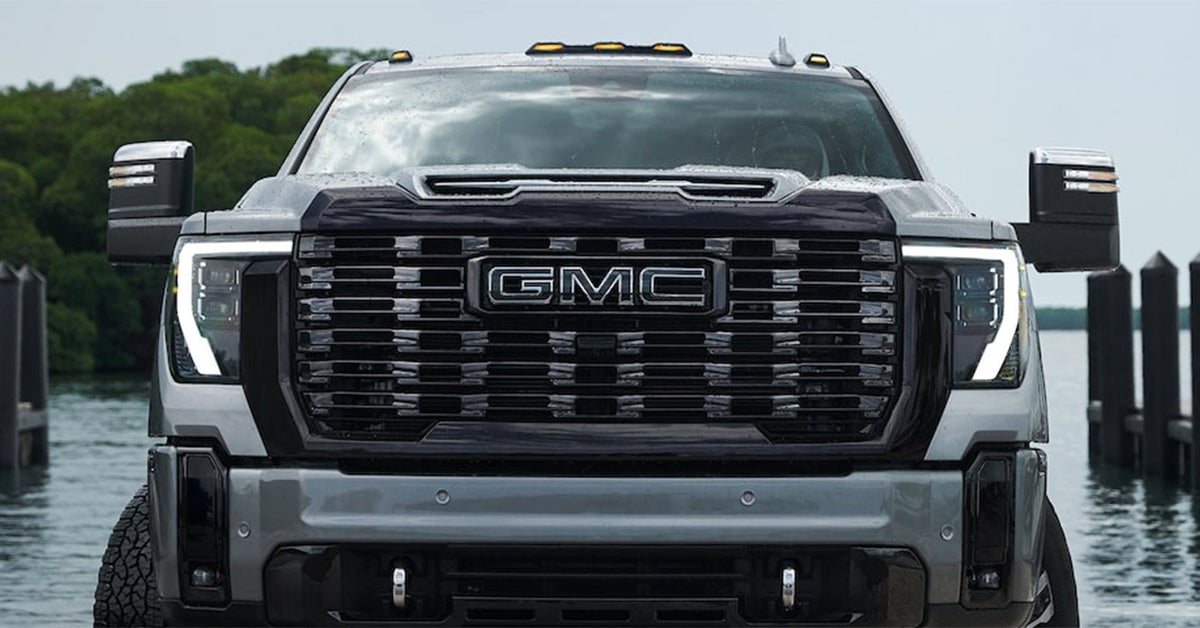



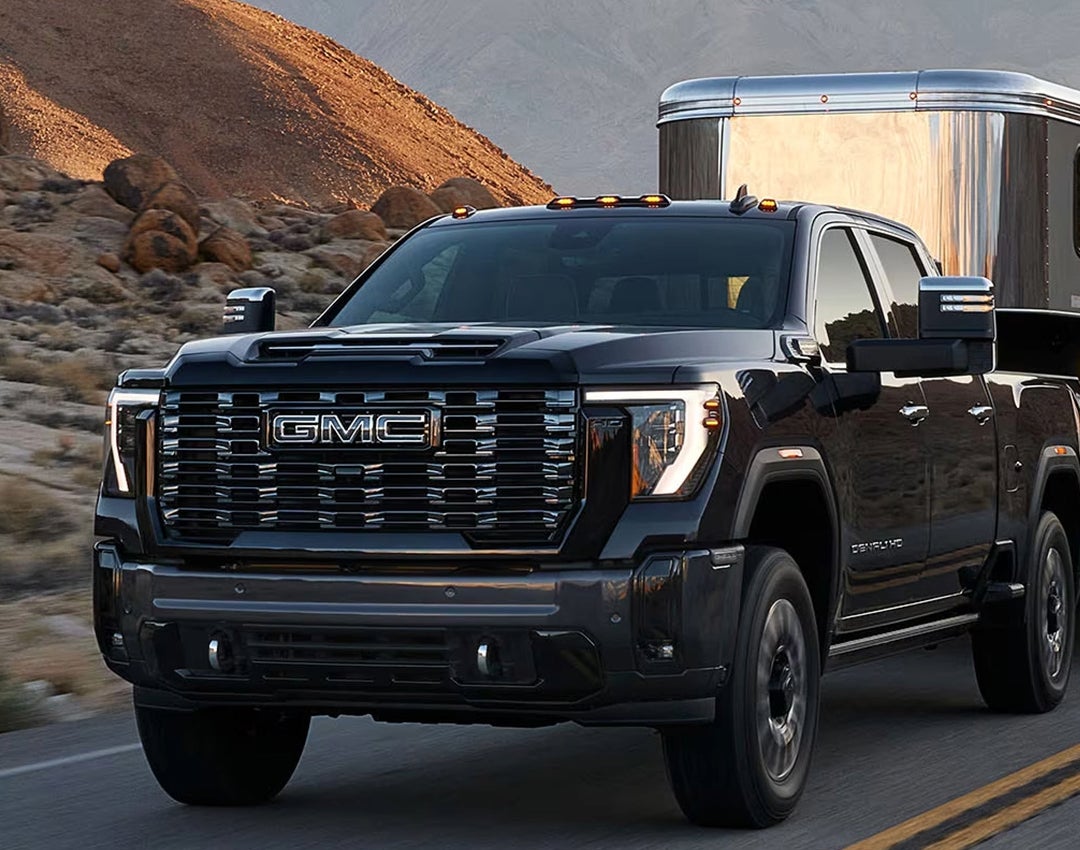
When the sun sets over Waverly, Highland Park, or Alcoma, your GMC’s mirror lights become essential for visibility and safety. Whether you're backing into a tight spot, navigating a dimly lit road, or hooking up a trailer with your Sierra 1500 or Sierra HD, knowing how to control your GMC mirror illumination is key.
In this guide, we’ll walk you through everything you need to know about turning your GMC mirror lights on and off, adjusting their settings, and troubleshooting any issues. If you need hands-on assistance, Huston GMC is here to help—stop by or give us a call to ensure your GMC’s lighting works exactly how you need it!
Locating the GMC Sierra HD Mirror Light Controls
Finding the right controls for your GMC mirror illumination is simple once you know where to look. Whether you drive a Sierra 1500 or a Sierra HD, the mirror light settings are easy to access from the driver's seat.
Where to Find the Controls
Most GMC mirror light on/off switches are near the main lighting controls. Here’s where to check:
- Dashboard Controls – Located to the left of the steering wheel, near the headlight settings.
- Door Panel – Some models have buttons on the driver’s door.
- Touchscreen Settings – In newer models, you can adjust mirror lighting through the infotainment system.
- Key Fob – Some trucks allow you to turn on mirror lights remotely.
How to Identify the Right Button
Look for an icon that resembles a side mirror with light rays. If you’re unsure, check your owner’s manual for exact placement in your Sierra 1500 or Sierra HD.
Once you’ve found the GMC mirror lights control, turning them on and off is a breeze. In the next section, we’ll walk you through how to do it with just a push of a button.
How to Turn On Your GMC Sierra's Mirror Lights
Turning on your GMC mirror lights is quick and simple. Whether you're parking in a dark area, hitching up a trailer, or just need extra visibility on the road, knowing how to activate them can make a big difference. These lights not only improve safety but also add convenience when working around your vehicle at night.
Steps to Turn On the Lights
Follow these steps to activate your GMC’s mirror illumination:
- Locate the Control – The mirror lights control is usually found in one of the following places:
- Dashboard Controls – Near the headlight settings, typically to the left of the steering wheel.
- Door Panel – Some GMC models have a dedicated button on the driver’s door.
- Infotainment Screen – On newer models, the settings can be adjusted through the touchscreen.
- Press or Toggle the Button – Depending on your model, either:
- Press a physical button to turn the lights on.
- Select the appropriate option on the infotainment screen.
- Check for Activation – Look at the mirrors to ensure the illumination is working. A soft glow should be visible from the mirror housing.
Other Ways to Activate Mirror Lights
If you don’t want to manually turn them on, your GMC may have additional options for activation:
- Remote Access – Certain GMC trucks allow you to turn the mirror lights on using the key fob, providing quick illumination before you even reach the vehicle.
- Auto Mode – Many models automatically activate the mirror lights when you unlock the doors, making it easier to find your truck in a dark parking lot.
- Manual Override – If automatic settings don’t work, you can navigate to your truck’s lighting menu through the infotainment system and manually turn them on.
Troubleshooting Mirror Lights That Won’t Turn On
If your mirror lights don’t activate as expected, try the following steps:
- Ensure the Truck is Running or in Accessory Mode – Many GMC models require the ignition to be on for certain exterior lights to function.
- Check Your Settings – If your truck has auto-mode lighting, confirm that the setting is enabled in the infotainment system.
- Inspect the Fuse – A blown fuse could prevent the lights from working. Consult your owner’s manual for the correct fuse location.
- Restart Your Truck – Sometimes, resetting the system by turning the vehicle off and back on can resolve minor lighting issues.
By understanding how to activate your mirror illumination, you can make the most of this useful feature for safer and more convenient nighttime driving. Up next, we’ll go over how to turn them off when they’re no longer needed.
How to Turn Off Your GMC Sierra's Mirror Lights
Turning off your mirror illumination is just as simple as turning it on. Whether you want to save battery power, reduce glare, or simply prefer to drive without extra lighting, the process is quick and easy. Knowing how to manage your settings can help ensure a smooth and hassle-free experience.
Steps to Turn Off the Lights
Follow these simple steps to turn off your mirror lights:
- Find the Control – Locate the mirror lights control on your dashboard, door panel, or touchscreen, depending on your model.
- Press or Toggle the Button – Push the switch or select the option in your settings to turn the lights off.
- Confirm They Are Off – Check the mirrors to make sure the illumination is no longer active.
Other Ways to Turn Off Mirror Lights
Depending on your truck’s features, there are other ways to ensure the mirror lights turn off when needed:
- Lock the Truck – Many models automatically turn the lights off when the doors are locked.
- Use the Infotainment Screen – Some GMC vehicles allow you to adjust the mirror lighting settings through the touchscreen.
- Wait for Auto Shutoff – In certain models, the lights turn off on their own after a set amount of time.
If the lights remain on after following these steps, check your vehicle’s settings or restart the engine. A quick reset may resolve the issue. If the problem persists, consider checking your owner’s manual for additional guidance or visiting a dealership for expert assistance.
Customizing Your GMC Mirror Illumination Settings
Your mirror illumination can be tailored to match your needs. Whether you prefer a brighter light for better visibility or a softer glow for a more relaxed setting, adjusting these settings takes just a few simple steps. Customizing your lighting can improve safety, convenience, and comfort, making it easier to see in dark conditions or create the perfect lighting for your drive.
How to Adjust Your Mirror Light Settings
Follow these steps to modify your mirror illumination settings:
- Access the Controls – Open the settings menu using the mirror lights control on the dashboard or touchscreen.
- Select Brightness – Adjust the brightness level to increase or decrease the light output.
- Choose Auto or Manual Mode – Pick auto mode for hands-free lighting or manual mode for full control over when the lights turn on and off.
- Save Your Preference – Confirm your settings so they remain the same for future drives.
Additional Customization Options
Depending on your model, you may have access to extra settings to fine-tune your mirror lighting:
- Sync With Headlights – Some GMC trucks allow the mirror lights to turn on and off automatically with the headlights.
- Entry and Exit Lighting – Adjust the settings to control when the lights activate as you unlock or open the door.
- Off-Delay Timer – Set a timer to keep the lights on for a few seconds after you exit the truck for added visibility.
Making these small adjustments can enhance your driving experience by improving visibility and convenience. If you're unsure how to customize your settings, check your owner’s manual for specific instructions or visit your local dealership for assistance.
Common GMC Mirror Light Issues & How to Fix Them
If your mirror illumination is not working as expected, a few simple fixes may help. Below are common problems and how to solve them.
1. Mirror Lights Won’t Turn On
- Check the settings – Make sure the mirror lights control is on.
- Inspect the fuse – A blown fuse can stop the lights from working.
- Test the switch – If the button is not responding, it may need repair.
2. Mirror Lights Stay On
- Adjust the auto setting – Some models keep lights on for a short time after parking.
- Check the wiring – A loose wire may cause the system to malfunction.
- Reset the system – Turn the truck off, wait a minute, then restart.
3. Mirror Lights Flicker
- Look for a weak connection – Loose or damaged wires can cause flickering.
- Inspect the bulb – If the bulb is old, it may need to be replaced.
- Check the battery – A low battery can affect electrical features.
If these steps don’t solve the issue, a dealer can help with repairs or replacements.
How do I turn on and off the lights on my GMC's mirrors?
- Use the mirror lights control inside the vehicle.
- Press the button or switch to turn them on or off as needed.
- Some models have automatic settings that activate the lights when unlocking the truck or opening a door.
Is there a dedicated control for the mirror lights on a GMC?
Yes, most GMC trucks have a specific button or switch for mirror illumination. This control is usually located on the dashboard or driver’s side door panel.
Need Help with GMC Mirror Lights? Visit Huston GMC!
Need more help with your GMC's mirror lighting? Our team at Huston GMC is here to assist you. Whether you have questions about your truck’s features or need expert service, we’re ready to help. Our knowledgeable staff can guide you through the controls, troubleshoot issues, and ensure your vehicle’s lighting works just as you need it
If you’re in Waverly, Highland Park, or Alcoma, stop by and explore our selection of Sierra 1500, Sierra HD, and other top GMC models. Browse our new GMC trucks online or visit us in person to find the right fit for you. Our team is happy to answer any questions about features, performance, and available upgrades to make your truck work best for your needs.
Looking for more ways to get the most out of your GMC? Learn how to view your truck’s cameras, remote start your heater and AC, and use remote start on your GMC truck for added convenience. Check out our site for more helpful guides and expert advice on maximizing your GMC’s performance and comfort.
Get Directions to Huston GMC
Disclaimer: All information is provided for general informational and entertainment purposes only. While we strive for accuracy, we cannot guarantee that all content is complete, current, or error-free. Any reliance you place on such information is strictly at your own risk. This article may include opinions and is not endorsed by, or officially affiliated with, any vehicle manufacturer or brand. Always consult official sources – such as the vehicle’s owner’s manual, authorized dealerships, or certified professionals – for the most up-to-date and personalized information.