



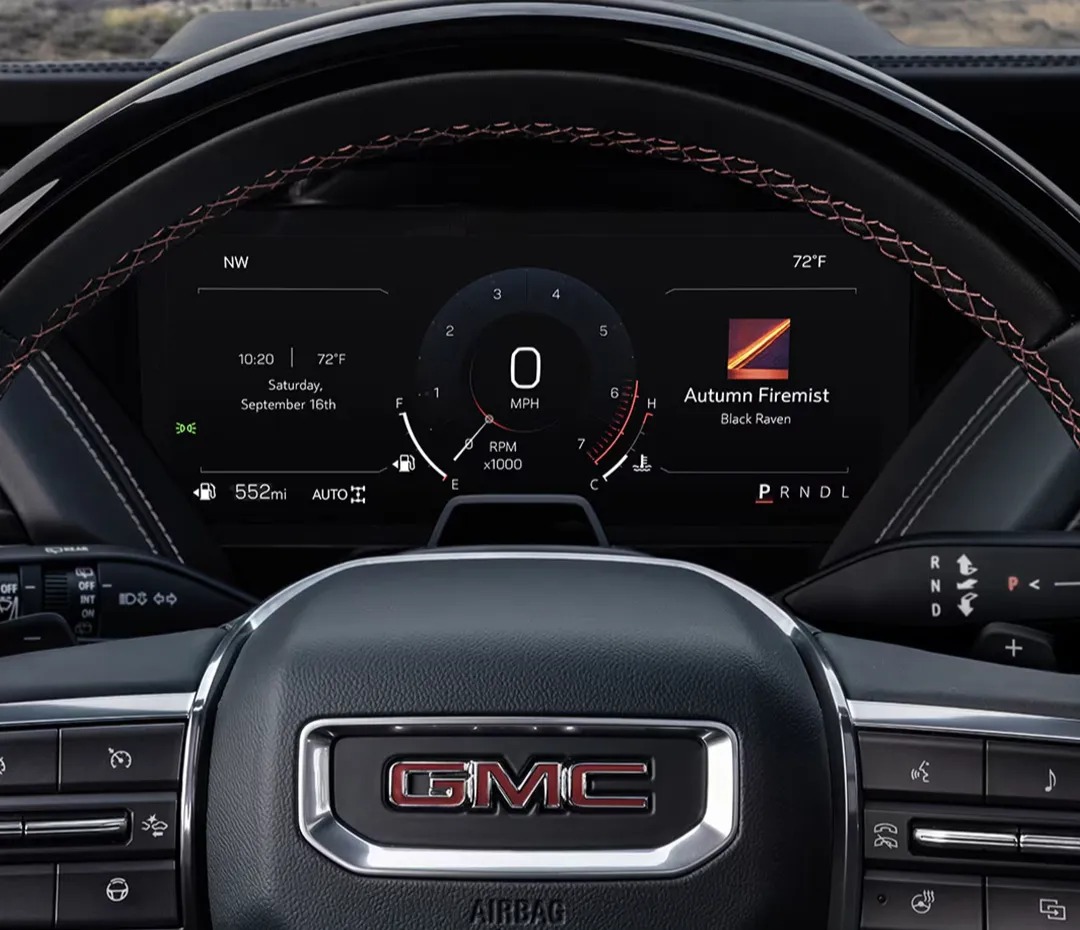
Your GMC is more than just a vehicleits your trusted partner for every adventure, whether you’re navigating the rugged terrains of Waverly, cruising through Highland Park, or running errands in Alcoma. But lets face it, not every feature suits everyone straight out of the factory. Take the startup chime, for exampleits a small but essential detail that sets the tone (literally) every time you start your GMC. Whether its too loud for your taste or not audible enough, adjusting the GMC startup chime volume is a quick way to make your driving experience feel even more personalized.
In this blog, well show you how easy it is to customize the GMC chime settings on popular models like the
Sierra HD,
Canyon, and
Hummer EV Pickup. With step-by-step guidance, youll discover how to make your vehicles startup sound fit your style. Need a hand or have questions about your GMC? Stop by or contact Huston Cadillac GMCyour trusted dealership near Waverly, Highland Park, and Alcomafor expert advice and assistance. Lets get started!
Exploring the Infotainment System FeaturesYour GMCs infotainment system is the control center for many important features, including the startup chime volume. Whether youre driving a rugged Sierra HD, a versatile Canyon, or the electric Hummer EV Pickup, understanding your infotainment system is key to customizing your vehicle.
Heres how to get started with your GMCs audio and chime settings:
Navigating the Infotainment SystemAccess the Audio Page
- Press the “Audio” button on the Home screen to open the Audio page.
- View all available audio sources, including AM/FM, Bluetooth, and more.
Browse Options
- Press the “Browse” button to see audio choices within each source.
- Quickly switch between the last three used audio sources for easy access.
Fine-Tune Speaker Settings
- On the Audio page, press “Sound” to adjust bass, treble, and balance.
- Customize your speaker setup for the best driving experience.
Control Volume Levels
- Use the volume knob or the + and – buttons on the steering wheel to adjust the overall sound.
Your GMC chime settings are part of the infotainment system. These steps help you adjust the startup chime volume to suit your preference:
- Go to the “Settings” menu on your infotainment screen.
- Select “Vehicle” or “Sounds” (varies by model).
- Locate the option for the startup chime and use the slider or buttons to adjust the volume.
A perfectly tuned chime adds comfort to every drive. Whether youre starting up your Sierra HD or heading out in your Hummer EV Pickup, the right volume keeps your vehicle functional and enjoyable. If you have trouble with the settings, check your owners manual or visit Huston Cadillac GMC for personalized assistance.
Mastering your infotainment system ensures a smoother, more personalized driving experience. Lets move on to customizing even more features!
Locating the Startup Chime Volume SettingsFinding the right settings to adjust your GMC’s startup chime volume is simple when you know where to look. Whether youre fine-tuning your Sierra HD, Canyon, or Hummer EV Pickup, these steps will guide you.
Step-by-Step Guide to Locate the Chime SettingStart with the Infotainment System
- Turn on your vehicle and access the infotainment screen.
- Look for the “Settings” icon, typically displayed on the main menu.
Navigate to Vehicle Options
- Once inside the Settings menu, scroll or tap to find “Vehicle” or “Sound Settings.”
- Some models, like the Sierra HD, may have a dedicated “Sounds” tab for quicker access.
Find the Startup Chime Settings
- Within the “Sound Settings,” locate the option for the GMC chime settings.
- Select the startup chime section to view volume adjustment tools.
Once youve accessed the settings, follow these simple steps to make adjustments:
- Use the on-screen slider to increase or decrease the chime volume.
- In some models, press the + or – buttons to adjust the GMC chime sound incrementally.
- Test your changes by restarting your vehicle to ensure the volume meets your preferences.
- Save your favorite settings for quick reference.
- Check your owner’s manual for model-specific details on accessing chime controls.
- For hands-on help, visit Huston Cadillac GMC near Waverly, Highland Park, or Alcoma.
Locating and adjusting your startup chime is an easy way to make your GMC more personal. Once set, you can enjoy a smoother start every time you get behind the wheel!
Step-by-Step Guide to Adjusting the Startup Chime VolumeCustomizing your GMCs startup chime volume is a quick process that ensures a more enjoyable driving experience. Whether you drive a Sierra HD, Canyon, or the Hummer EV Pickup, follow these steps to get started.
Step 1: Access the Infotainment System
- Turn on your vehicle and locate the infotainment screen.
- Tap the “Settings” icon on the main menu to open the settings options.
Step 2: Navigate to Sound or Vehicle Settings
- In the “Settings” menu, look for “Vehicle Settings” or “Sound Settings.”
- Select the appropriate option based on your models interface.
Step 3: Locate the Startup Chime Section
- Within the sound settings, find the GMC chime settings section.
- Tap the “Startup Chime” option to access volume controls.
Step 4: Adjust the Startup Chime Sound
- Use the on-screen slider to increase or decrease the chimes volume.
- Alternatively, press the + or – buttons, if available, for precise adjustments.
- Test the volume by restarting your vehicle to ensure it meets your needs.
- If you drive a Sierra HD, check for advanced chime options in the vehicle settings.
- The Canyon and Hummer EV Pickup may offer unique sound profiles for additional customization.
- Refer to your owners manual for specific instructions tailored to your GMC model.
A well-set chime is not just functional; its also about comfort. Whether you prefer a quiet tone or a louder alert, adjusting the GMC startup chime volume ensures every drive starts the way you like it.
For more help,
visit Huston Cadillac GMCnear Waverly, Highland Park, or Alcoma. Their
teamcan guide you through fine-tuning every detail of your vehicles sound settings.
Customizing Chime Preferences for a Personalized ExperienceYour GMC isnt just a vehicleits your space. Tailoring the chime settings lets you start every trip your way. Whether you drive a Sierra HD, Canyon, or Hummer EV Pickup, adjusting these preferences enhances your experience.
Options for CustomizationThe GMC chime settings allow you to make your vehicles alerts feel just right. Heres how you can personalize them:
- Startup Volume: Set the volume to low for a subtle alert or higher for a more noticeable tone.
- Tone Selection: Depending on your GMC model, you may have options for different chime sounds.
- Duration Settings: Some models let you adjust how long the chime plays when you start your vehicle.
- Open the infotainment system menu and go to “Vehicle Settings.”
- Look for the “Chime Preferences” option under sound settings.
- Adjust the chime sound, volume, or tone to match your needs.
- Save your preferences to ensure they remain the same each time you start your vehicle.
Your GMC startup chime volume isnt just about alertsits part of your driving comfort. Custom settings help minimize distractions while keeping you informed. If you prefer quieter chimes in your Canyon or bold tones for your Sierra HD, the system makes it simple to adjust.
Pro Tip for GMC OwnersThe Hummer EV Pickup offers advanced sound controls. Its tech-forward design lets you customize not just the chime but other audio settings. This adds to its futuristic appeal while giving you full control over your experience.
Visit Huston Cadillac GMCnear Waverly, Highland Park, or Alcoma for more tips on how to adjust GMC chime sound. Their team can help you create a driving environment that feels tailor-made for you.
Can I completely turn off the startup chime instead of just lowering the volume?- No, the GMC startup chime cannot be completely turned off. You can only lower its volume to a minimal level.
- Yes, adjusting the startup chime volume may impact other system alerts that share the same sound settings, such as seatbelt reminders or warning tones.
- Navigate to “Vehicle Settings” in the infotainment menu, then select “Chime Preferences” or a similar option under sound settings.
Customizing your GMC to match your style is an exciting process. Whether youre adjusting features like the startup chime or exploring the latest technology in vehicles like the
Sierra HD,
Canyon, or
Hummer EV Pickup, Huston Cadillac GMC is here to help.
If youre in Waverly, Highland Park, or Alcoma, we invite you to visit our dealership.
Our teamis ready to assist you in finding your perfect GMC vehicle.
Browse our wide selection of new GMC vehiclestoday to discover trucks and SUVs built for both power and comfort.
Continue your journey on our website and
explore tips on what to consider when buying a used GMC truck or SUV, or learn
how GMC Certified Pre-Owned vehicles can save you moneywithout sacrificing quality. If youre curious about how your GMC handles unique conditions,
our guide on navigating tough terrains in gator countryis a must-read.
Were here to answer your questions, help you make informed decisions, and provide the best GMC vehicles for your needs.
Visit us online or stop by Huston Cadillac GMC today!Get Directions to Huston GMC
Disclaimer: All information is provided for general informational and entertainment purposes only. While we strive for accuracy, we cannot guarantee that all content is complete, current, or error-free. Any reliance you place on such information is strictly at your own risk. This article may include opinions and is not endorsed by, or officially affiliated with, any vehicle manufacturer or brand. Always consult official sources – such as the vehicle’s owner’s manual, authorized dealerships, or certified professionals – for the most up-to-date and personalized information.
Connect with us


- October 2025
- September 2025
- August 2025
- July 2025
- June 2025
- May 2025
- April 2025
- February 2025
- January 2025
- December 2024
- November 2024
- October 2024
- September 2024
- August 2024
- July 2024
- June 2024
- May 2024
- April 2024
- March 2024
- February 2024
- January 2024
- December 2023
- November 2023
- October 2023
- August 2023
- June 2023
- May 2023
- December 2022
- November 2022
- October 2022
- August 2022
- July 2022
- April 2022
- January 2022
- December 2021
- October 2021
- July 2021
- June 2021