



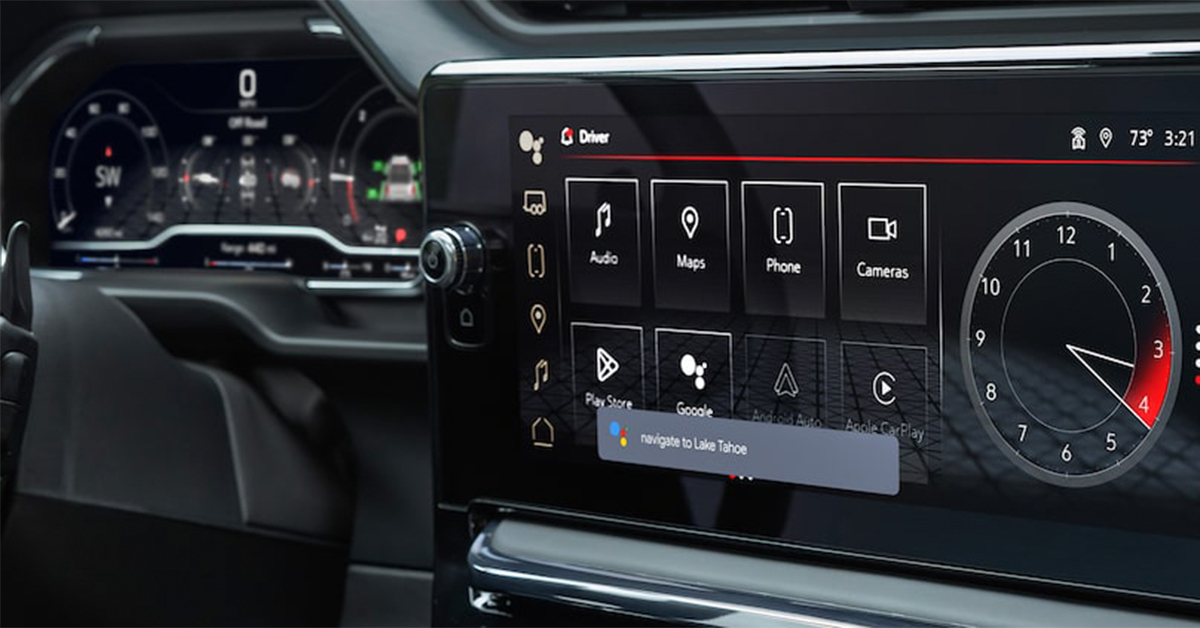
Staying connected on the road has never been easier with your GMC’s advanced infotainment system. Whether you drive a GMC Sierra 1500, Yukon XL, or Acadia, pairing your phone for hands-free calling takes just a few simple steps. With GMC Bluetooth calling, you can make and receive calls without taking your hands off the wheel, keeping your drive safe and convenient.
In this guide, we’ll walk you through the process of how to connect your phone to your GMC so you can stay in touch wherever you go. If you need assistance, the team at Huston GMC is here to help. Stop by our dealership or give us a call, and we’ll make sure your GMC is set up for seamless connectivity!
Before Making Calls: Set Up Your GMC for Bluetooth Pairing
Before you can make hands-free calls, you’ll need to connect your phone to your GMC’s infotainment system. The process is simple, and in just a few minutes, you’ll be ready to enjoy GMC Bluetooth calling on the go. Whether you’re driving through Waverly, Highland Park, or Alcoma, this guide will help you get started.
Steps to Prepare Your GMC for Pairing
- Park your vehicle – Make sure your GMC is in park with the engine running.
- Turn on Bluetooth – Open your phone’s settings and switch Bluetooth on.
- Access the infotainment system – Tap the phone icon on your GMC’s touchscreen.
- Choose to pair a device – Select “Pair Device” or “Add New Phone” from the menu.
Once these steps are complete, your GMC is ready for the next stage. In the following sections, we’ll walk you through how to pair your phone to GMC infotainment, confirm the connection, and start making calls.
Step-by-Step Guide to Pairing Your Phone with GMC Infotainment
Setting up GMC Bluetooth calling is quick and simple. Once your phone is paired, you can make hands-free calls while keeping your focus on the road. Follow these steps to connect your phone to your GMC and enjoy seamless communication, whether you’re driving through Waverly, Highland Park, or Alcoma.
1. Open the Phone Settings on Your GMC
- Tap the phone icon on the infotainment screen.
- Select “Pair Device” or “Add New Phone.”
- The system will start looking for nearby devices.
2. Turn On Bluetooth on Your Phone
- Open the settings app on your phone.
- Make sure Bluetooth is switched on.
- Keep your phone visible so your GMC can find it.
3. Select Your GMC from the List of Devices
- Look at the list of available Bluetooth connections on your phone.
- Tap your GMC’s name when it appears.
- Wait a moment while your phone connects.
4. Confirm the Pairing Code
- A code will show on both your phone and the infotainment screen.
- Make sure the codes match.
- Press “Pair” on your phone and confirm on your GMC screen.
5. Finalize the Connection
- Your phone will sync with the infotainment system.
- Your contacts and recent calls may take a few minutes to load.
- Once complete, you can use voice commands or the touchscreen to make calls.
Once your phone is paired, your GMC infotainment system will remember it for future drives. If you have any issues, you may need to delete and reconnect your phone. Now that you’re set up, let’s explore how to use voice commands for even easier calling.
Using Voice Commands to Connect and Make Calls
Once you pair your phone with GMC infotainment, making hands-free calls is even easier with voice commands. Instead of reaching for your screen, you can use simple voice prompts to stay connected while driving through Waverly, Highland Park, or Alcoma.
1. Activating Voice Commands
- Press the Push-to-Talk button on your steering wheel.
- Wait for the system to beep, letting you know it’s ready.
- Speak clearly when giving commands.
2. Making a Call with Voice Commands
- Say “Call [Contact Name]” to dial a saved contact.
- If calling a new number, say “Dial [Number]” instead.
- The system will confirm before placing the call.
3. Answering and Ending Calls Hands-Free
- When a call comes in, the system will announce the caller’s name or number.
- Say “Answer” to take the call.
- Say “Hang Up” when you’re done.
4. Switching Between Paired Phones
- If more than one phone is paired, say “Switch Phone” to change devices.
- The system will confirm which phone is now active.
With GMC Bluetooth calling, you can stay in touch while keeping both hands on the wheel. If the system doesn’t recognize your voice, try speaking louder or reducing background noise. Next, let’s go over troubleshooting steps for common connection issues.
Troubleshooting Common Bluetooth Connection Issues
Sometimes, GMC Bluetooth calling may not work as expected. If your phone won’t connect or calls keep dropping, a few quick fixes can help. Whether you’re driving through Waverly, Highland Park, or Alcoma, these steps will get you back on track.
1. Restart Your Phone and Vehicle
- Turn your vehicle off and back on.
- Restart your phone to refresh its Bluetooth connection.
- Try pairing again after both devices are back on.
2. Delete and Reconnect Your Phone
- Open your phone’s Bluetooth settings and remove your GMC from the list.
- Go to the infotainment screen and delete the phone from paired devices.
- Follow the steps to pair your phone with GMC infotainment again.
3. Check for Software Updates
- Make sure your phone’s operating system is up to date.
- If your GMC has an infotainment update, install it.
- Updated software can fix connection problems.
4. Ensure Bluetooth is Enabled and Discoverable
- Go to your phone’s settings and confirm Bluetooth is turned on.
- Make sure your phone is set to “visible” or “discoverable” mode.
- Some phones turn off discoverability after a few minutes.
5. Reduce Interference from Other Devices
- If other Bluetooth devices are nearby, turn them off.
- Try connecting your phone when there are fewer wireless signals around.
If none of these steps work, your vehicle’s system may need a reset. Visit your local dealership for expert help. Connecting your phone to GMC should be simple, and these troubleshooting tips will keep you connected on the road.
Pairing Multiple Phones and Setting a Primary Device
If more than one person drives your GMC, you may want to connect multiple phones. The infotainment system allows you to pair multiple phones and choose which one connects first. Whether you’re commuting through Waverly, Highland Park, or Alcoma, this feature keeps everyone’s phone ready for hands-free calling.
1. Adding Another Phone to Your GMC
- Go to the infotainment screen and tap the phone icon.
- Select “Pair Device” or “Add New Phone” from the menu.
- Follow the same steps used to connect your phone to GMC Bluetooth.
2. Switching Between Paired Phones
- If multiple phones are paired, the system connects to the last device used.
- To switch, go to the Bluetooth menu and select a different phone.
- You can also disconnect the current phone and reconnect another.
3. Setting a Primary Device for Hands-Free Calling
- Open the GMC Bluetooth calling settings on the infotainment screen.
- Choose which phone should connect first when you start the vehicle.
- The selected device will take priority for calls and messages.
4. What Happens If Two Phones Are in the Vehicle?
- The primary phone connects automatically.
- If the primary phone is not in range, the system will connect to the next available device.
- You can manually switch phones at any time.
Pairing multiple phones makes it easy to share your GMC without losing access to hands-free calling. If you need help setting a primary device, follow the steps above or visit your local dealership for assistance.
How do I pair my smartphone with my GMC’s infotainment system for calls?
- Tap the phone icon on your infotainment screen and select “Pair Device” or “Add New Phone.”
- Enable Bluetooth on your phone and select your GMC from the list of available devices.
- Confirm the pairing request on both screens and wait for the connection to complete.
Is there a specific Bluetooth PIN or code for GMC vehicles?
- Most GMC vehicles do not require a manual PIN. The infotainment screen will display a code that must match the one on your phone.
- If prompted for a PIN, try entering “0000” or “1234,” but most newer models will not require this step.
Can I sync multiple phones, and how do I switch between them?
- Yes, GMC allows you to pair multiple phones. The last connected phone will automatically reconnect when you start the vehicle.
- To switch devices, open the Bluetooth menu on the infotainment screen and select the phone you want to use.
- You can also set a primary phone to connect first when multiple devices are in the vehicle.
Having the right information makes pairing your phone quick and simple. If you experience any issues, follow our troubleshooting steps or visit a dealership for assistance.
Stay Connected on the Go with Huston GMC
Staying connected on the road is easy when your phone is paired with your GMC infotainment system. If you need help setting up your device, Huston GMC is here to assist. Our team can walk you through the process and ensure everything works smoothly.
Drivers in Waverly, Highland Park, and Alcoma can also explore our lineup of Sierra 1500, Yukon XL, and Acadia models. Whether you’re looking for advanced tech, premium comfort, or powerful performance, we have the right GMC for you.
Want to get even more out of your GMC? Learn how to adjust your tailgate settings, change the angle of your heads-up display, or modify your startup chime volume for a personalized driving experience.
If you have any questions or need expert service, schedule an appointment with our team. Visit us today, we’re happy to help!
Get Directions to Huston GMC
Disclaimer: All information is provided for general informational and entertainment purposes only. While we strive for accuracy, we cannot guarantee that all content is complete, current, or error-free. Any reliance you place on such information is strictly at your own risk. This article may include opinions and is not endorsed by, or officially affiliated with, any vehicle manufacturer or brand. Always consult official sources – such as the vehicle’s owner’s manual, authorized dealerships, or certified professionals – for the most up-to-date and personalized information.
Connect with us


- October 2025
- September 2025
- August 2025
- July 2025
- June 2025
- May 2025
- April 2025
- February 2025
- January 2025
- December 2024
- November 2024
- October 2024
- September 2024
- August 2024
- July 2024
- June 2024
- May 2024
- April 2024
- March 2024
- February 2024
- January 2024
- December 2023
- November 2023
- October 2023
- August 2023
- June 2023
- May 2023
- December 2022
- November 2022
- October 2022
- August 2022
- July 2022
- April 2022
- January 2022
- December 2021
- October 2021
- July 2021
- June 2021